
Running your first cloud show, start to finish
Your first cloud show is a normal show with one thing added: singers can send you requests from where they are sitting. Everything else stays where it was. Here is the whole path, in order, with the parts that trip people up called out.
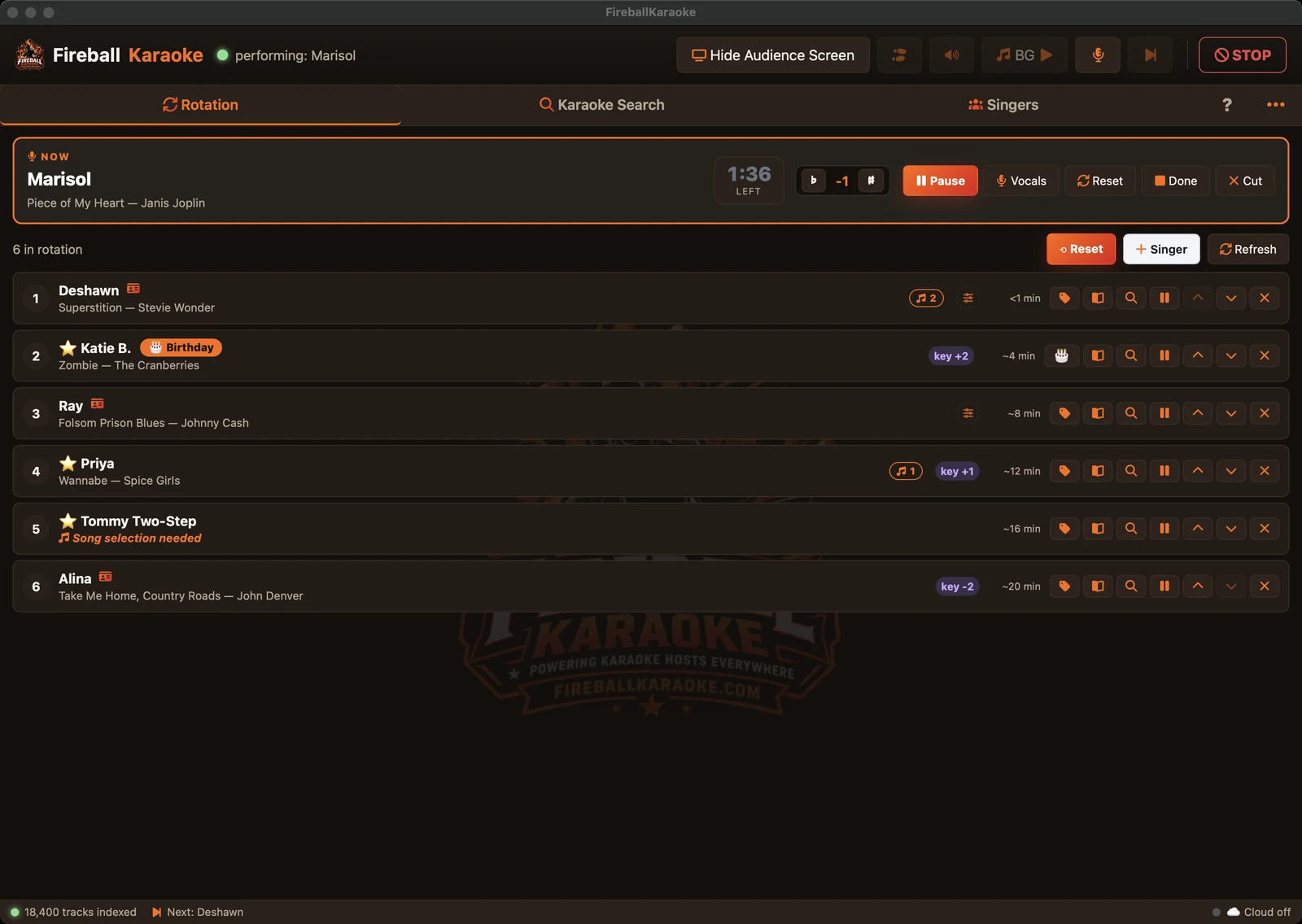 The plugin before any of this. The cloud does not change how the show runs; it changes how songs reach you.
Before the night
Pair the rig. In the plugin, open Settings and find the FireballKaraoke.com section. Tick Enable cloud sync, name the rig something you will recognise later, and press Connect. You get an eight character code and your browser opens the approval page. Approve it there, and both sides go green.
The code is good for fifteen minutes. If you wander off and it expires, press Connect again; nothing is broken.
Let the catalogue go up. The moment you connect, your karaoke library starts syncing. Titles, artists, and albums only: no file paths, ever. A big library goes up in chunks and can take a few minutes the first time. Leave the plugin running and let it finish. After that, only changes travel.
Claim your web address. On your profile page, pick the short address that goes on your posters. It is worth doing before you print anything.
At the venue
Open the show in the plugin like you always do. When the rig is connected, opening the show also opens your request page. Anyone already sitting on that page sees it come alive without touching anything.
Put the code where the room can see it. The audience screen carries the QR code while a cloud show is running, and you decide how big it is and which corner it sits in. There is also a QR button in the top bar for holding a laptop up, or for the screenshot you print as a table card.
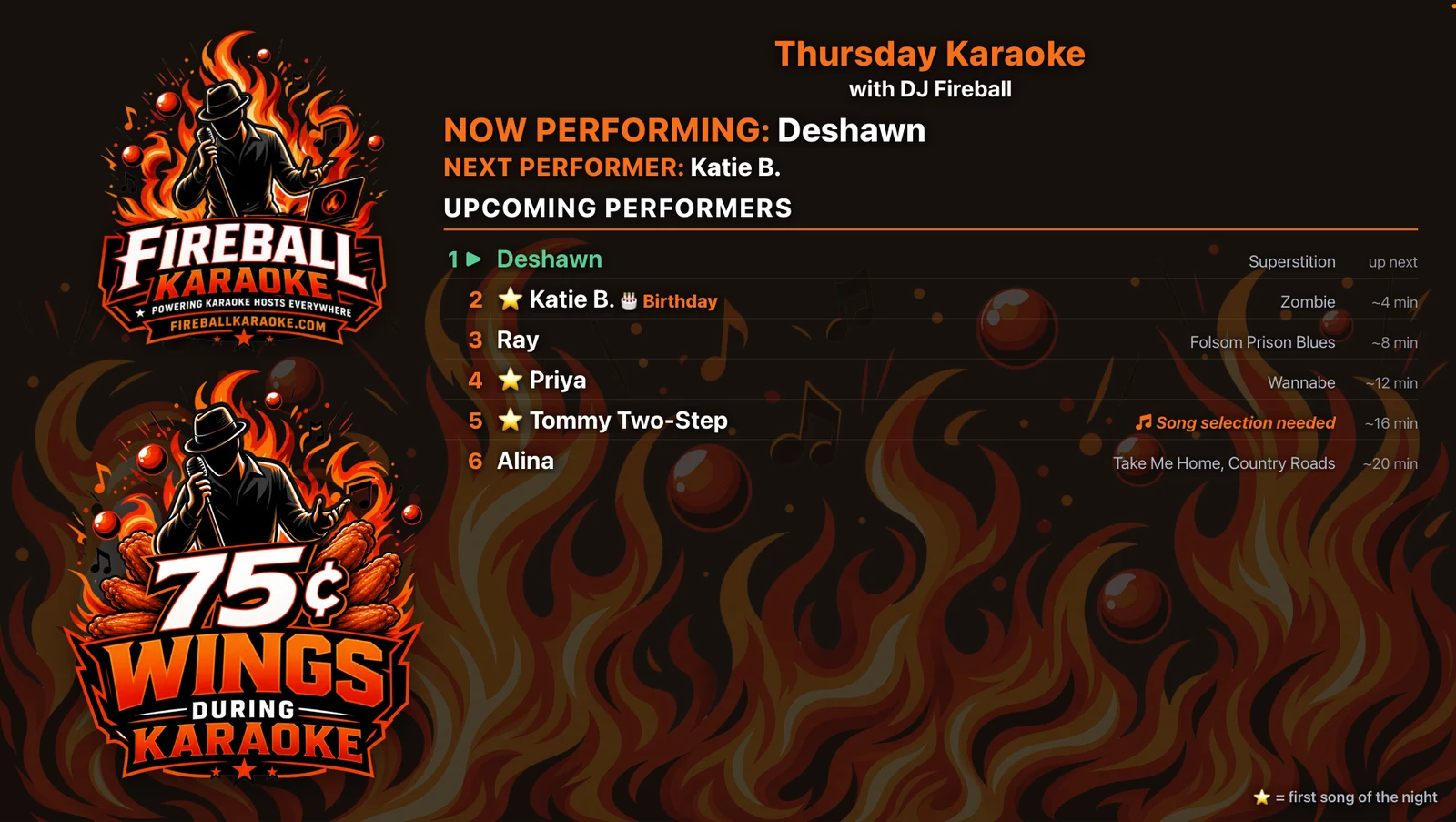 The QR code lives on the same screen the room is already watching.
What a singer does
Scans, types a name, searches, taps a song, and picks a key change if they want one. No app, no account, no password. That is the entire sign-up, and it is deliberately that short: they have had two drinks and are standing in a dark room.
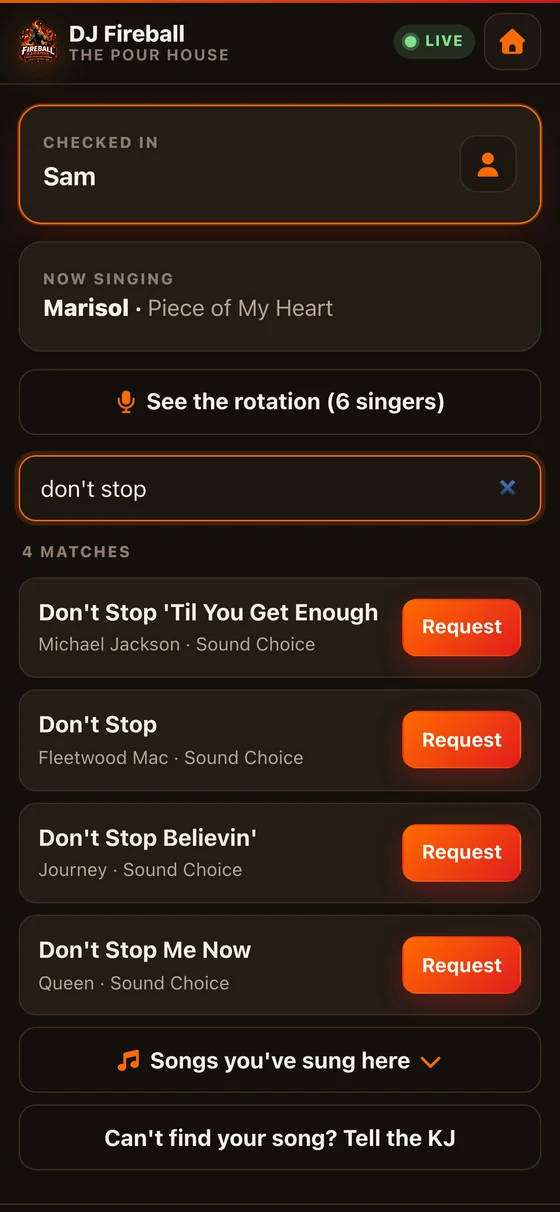 What they see. Their spot in the rotation updates on its own while they wait.
What you do
Requests land in the approval dock in the plugin, and on the host remote if you are working from your phone. Approve, and the singer joins the rotation exactly as if you had typed them in yourself.
Two things worth knowing on night one. You can freeze requests when the queue gets away from you, and the phones say so politely. And every singer is capped at two pending requests, so one enthusiastic person cannot fill the list while everyone else waits.
When the Wi-Fi does what venue Wi-Fi does
The show carries on. Rotation, audience screen, and music are all local. Requests stop arriving until the connection is back, and everything already approved is untouched. You do not have to do anything, and most of the room will never notice.
After the night
End the show as usual. If you have reports switched on, a summary of the night arrives by email, and there is a version you can send the venue.
That is the whole thing. Get the plugin, and if you want the phone half, the first month is free.
Run your next night on it
The plugin is free and works offline forever. The cloud service adds phone requests and a remote in your pocket.